
Shelly Wave Device Documentation
Note: The product line known as "Shelly Qubino Wave" will now be referred to as "Shelly Wave". This name change will not impact the functionality of any devices. The only modification will be the use of the new name in all future documentation.
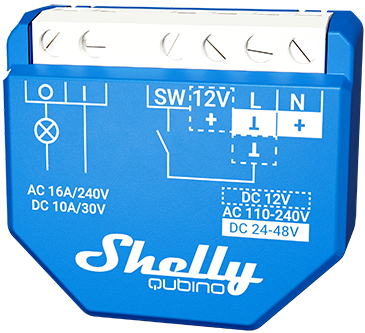
Device Identification
Error rendering macro 'excerpt-include': User '712020:515aa595-e304-41f3-886a-d9b6b0b7f5a3' does not have permission to view the page 'DEV:Z-Wave man.info, product type, product ID'.
Terminology
- Device – In this document, the term “Device” is used to refer to the Shelly Qubino device that is a subject of this guide.
- Gateway (GW) – A Z-Wave™ gateway, also referred to as a Z-Wave™ controller, Z-Wave™ main controller, Z-Wave™ primary controller, or Z-Wave™ hub, etc., is a device that serves as a central hub for a Z-Wave™ smart home network. The term “gateway” is used in this document.
- S button – The Z-Wave™ Service button, located on Z-Wave™ devices and is used for various functions such as adding (inclusion), removing (exclusion), and resetting the device to its factory default settings. The term "S button" is used in this document.
Short Description
Error rendering macro 'excerpt-include': User '712020:515aa595-e304-41f3-886a-d9b6b0b7f5a3' does not have permission to view the page 'DEV:About the Device'.
Switch/Press-Button Connected to Input Terminal SW (SW1)
Error rendering macro 'excerpt-include': User '712020:515aa595-e304-41f3-886a-d9b6b0b7f5a3' does not have permission to view the page 'DEV:Basic Functions'.
Main Applications
Error rendering macro 'excerpt-include': User '712020:515aa595-e304-41f3-886a-d9b6b0b7f5a3' does not have permission to view the page 'DEV:Main applications'.
Integrations
Shelly Qubino Wave devices are developed on the world's leading technology for smart homes – Z-Wave®.
This means Shelly Qubino Wave works with all certified gateways supporting Z-Wave communication protocol.
To make sure the functions of Shelly Qubino Wave products are supported on your gateway, we are regularly executing compatibility tests of our devices with different Z-Wave gateways.
Simplified Internal Schematics
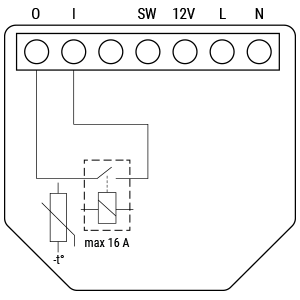
Device Electrical Interfaces
Inputs
Error rendering macro 'excerpt-include': User '712020:515aa595-e304-41f3-886a-d9b6b0b7f5a3' does not have permission to view the page 'DEV:Device electrical interfaces'.
Outputs
Error rendering macro 'excerpt-include': User '712020:515aa595-e304-41f3-886a-d9b6b0b7f5a3' does not have permission to view the page 'DEV:Device electrical interfaces'.
Connectivity
Z-Wave – Unsecure, S0 Security, S2 Unauthenticated Security, S2 Authenticated Security
Safety Features
Overheat Protection
- Switch off its own relay
- Send Notification Report to the Gateway (Overheat detected)
- LED lights react as specified above (check blinking mode for Overheat detected)
Any of the following activities reset this alarm:
- Power cycle
- Short press on S button
- Press any switch-push button connected to any SW (SW, SW1, SW2, …) terminal
NOTE: The Overheat protection is always active and cannot be disabled.
Additional description above under chapter Notification for Overheat detected.
Supported Load Types
Error rendering macro 'excerpt-include': User '712020:515aa595-e304-41f3-886a-d9b6b0b7f5a3' does not have permission to view the page 'DEV:Supported load types'.
User Interface
Unable to render {include} – The included page could not be found.
LED Signalisation
Click to see the LED Signalisation
Normal Mode
Removed/Excluded
The LED will be blinking blue in Mode 1 for 10 minutes after every power cycle and 10 minutes after S button pressed.
Added/Included
The LED will be blinking green in Mode 1 for 10 minutes after every power cycle and 10 minutes after S button pressed.
Settings in Progress
Factory Reset and Reboot
During factory reset, the LED will turn solid green for approx. 1 second, then the blue and red LED will blink 0.1s On / 0.1s Off for about 2 seconds.Adding / Removing
During adding or removing, the LED will be blinking blue in Mode 2.
Firmware Updating OTA
During the OTA update, the LED will be blinking blue and red in Mode 2.
Checking Power Supply (230 V AC frequency or 24 V DC voltage)
During checking the power supply, the LED will be blinking blue and red in Mode 5.
Settings Mode with S Button
Adding / Removing Menu Selected
When the menu is selected, the LED will be on blue, for a maximum of 10 seconds.Adding / Removing – While Pressing S Button – Add/Remove Process Selected
When the menu is executing, the LED will be blinking blue in Mode 3.
Factory Reset Menu Selected
When the menu is selected, the LED will be on red, for a maximum of 10 seconds.Factory Reset – While Pressing S Button – Factory Reset Process Selected
When the menu is executing, the LED will be blinking red in Mode 3.
Alarm Mode
- Overheat Detected
The LED will be blinking red in Mode 4 – 0.2s On / 0.2s Off × (1–6 times) + 2s Off, repeating this sequence.
LED Blinking Modes
Click to see the LED blinking modes
| Mode | Description |
|---|---|
| Mode 1 | 0.5s On / 2s Off |
| Mode 2 | 0.5s On / 0.5s Off |
| Mode 3 | 0.1s On / 0.1s Off |
| Mode 4 | (1x to 6x: 0.2s On / 0.2s Off) + 2s Off |
| Mode 5 | 0.2s On (blue) / 0.2s On (red) |
Specifications
| Parameter | Value |
|---|---|
| Power supply | 110–240 V AC / 24–48 V DC / 12 V DC ±10% |
| Power consumption | < 0.3 W |
| Max. switching voltage AC | 240 V |
| Max. switching current AC | 16 A |
| Max. switching voltage DC | 30 V |
| Max. switching current DC | 10 A |
| Overheating protection | Yes |
| Distance | Up to 40 m indoors (131 ft.) (depends on local conditions) |
| Z-Wave® repeater | Yes |
| CPU | Z-Wave® S800 |
| Z-Wave® frequency band | 868.4 MHz |
| Max. radio frequency power transmitted | < 25 mW |
| Size (H x W x D) | 37 × 42 × 16 ±0.5 mm / 1.46 × 1.65 × 0.63 ±0.02 in |
| Weight | 26 g / 0.92 oz. |
| Mounting | Wall console |
| Screw terminals max. torque | 0.4 Nm / 3.5 lbin |
| Conductor cross section | 0.5 to 1.5 mm² / 20 to 16 AWG |
| Conductor stripped length | 5 to 6 mm / 0.20 to 0.24 in |
| Shell material | Plastic |
| Color | Blue |
| Ambient temperature | -20°C to 40°C / -5°F to 105°F |
| Humidity | 30% to 70% RH |
| Max. altitude | 2000 m / 6562 ft |
Basic Wiring Diagram
| Diagram 1 | Diagram 2 | Diagram 3 |
|---|---|---|
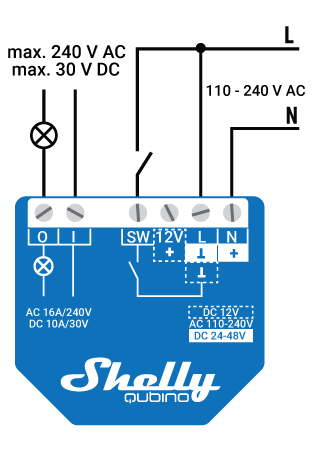 | 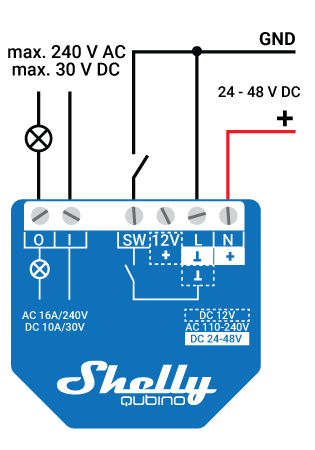 | 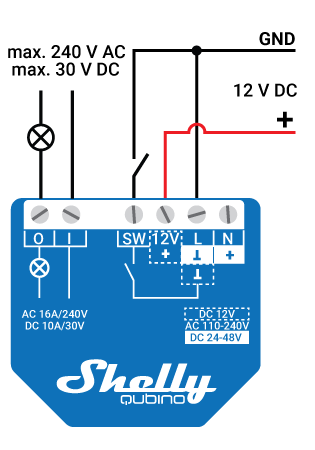 |
Legend
| Terminals | Description | Cables | Description |
|---|---|---|---|
| N | Neutral terminal | N | Neutral wire |
| L | Live terminal (110–240 V AC) | L | Live (110–240 VAC) wire |
| SW | Switch/push-button input terminal (controlling O) | + | 12 / 24–48 VDC positive wire |
| I | Load circuit input terminal | GND | 12 / 24–48 VDC ground wire |
| O | Load circuit output terminal | ||
| 12V+ | 12 V DC positive terminal | ||
| + | 24–48 VDC positive terminal | ||
| ⱳ | 12 / 24–48 VDC ground terminal |
About Z-Wave®
Adding the Device to a Z-Wave® Network (Inclusion)
Note! All Device outputs (O, O1, O2, etc. – depending on the Device type) will turn the load 1s on/off / 1s on/off if the Device is successfully added to/removed from a Z-Wave® network.
Note! In case of Security 2 (S2) adding (inclusion), a dialog will appear asking you to enter the corresponding PIN Code (5 underlined digits) that are written on the Z-Wave® DSK label on the side of the Device and on the Z-Wave® DSK label inserted in the packaging.
IMPORTANT: The PIN Code must not be lost.
SmartStart Adding (Inclusion)
SmartStart enabled products can be added into a Z-Wave® network by scanning the Z-Wave® QR Code present on the Device with a gateway providing SmartStart inclusion. No further action is required, and the SmartStart device will be added automatically within 10 minutes of being switched on in the network vicinity.
- With the gateway application, scan the QR code on the Device label and add the Security 2 (S2) Device Specific Key (DSK) to the provisioning list in the gateway.
- Connect the Device to a power supply.
- Check if the blue LED is blinking in Mode 1. If so, the Device is not added to a Z-Wave® network.
- Adding will be initiated automatically within a few seconds after connecting the Device to a power supply, and the Device will be added to a Z-Wave® network automatically.
- The blue LED will be blinking in Mode 2 during the adding process.
- The green LED will be blinking in Mode 1 if the Device is successfully added to a Z-Wave® network.
Adding (Inclusion) with the S Button
- Connect the Device to a power supply.
- Check if the blue LED is blinking in Mode 1. If so, the Device is not added to a Z-Wave® network.
- Enable add/remove mode on the gateway.
- To enter Setting mode, quickly press and hold the S button until the LED turns solid blue.
- Quickly release and then press and hold (>2s) the S button until the blue LED starts blinking in Mode 3. Releasing the S button will start the Learn mode.
- The blue LED will be blinking in Mode 2 during the adding process.
- The green LED will be blinking in Mode 1 if the Device is successfully added to a Z-Wave® network.
Note! In Setting mode, the Device has a timeout of 10 seconds before entering again into Normal mode.
Adding (Inclusion) with a Switch/Push-Button
- Connect the Device to a power supply.
- Check if the blue LED is blinking in Mode 1. If so, the Device is not added to a Z-Wave® network.
- Enable add/remove mode on the gateway.
- Toggle the switch/push-button connected to any of the SW terminals (SW, SW1, SW2, etc.) 3 times within 3 seconds (this procedure puts the Device in Learn mode). The Device must receive on/off signal 3 times, which means pressing the momentary switch 3 times, or toggling the switch on and off 3 times.
- The blue LED will be blinking in Mode 2 during the adding process.
- The green LED will be blinking in Mode 1 if the Device is successfully added to a Z-Wave® network.
Learn mode – a state that allows the Device to receive network information from the gateway.
Removing the Device from a Z-Wave® Network (Exclusion)
Note! The Device will be removed from your Z-Wave® network, but any custom configuration parameters will not be erased.
Note! All Device outputs (O, O1, O2, etc. – depending on the Device type) will turn the load 1s on/off / 1s on/off if the Device is successfully added to/removed from a Z-Wave® network.
Removing (Exclusion) with the S Button
- Connect the Device to a power supply.
- Check if the green LED is blinking in Mode 1. If so, the Device is added to a Z-Wave® network.
- Enable add/remove mode on the gateway.
- To enter Setting mode, quickly press and hold the S button until the LED turns solid blue.
- Quickly release and then press and hold (>2s) the S button until the blue LED starts blinking in Mode 3. Releasing the S button will start the LEARN MODE.
- The blue LED will be blinking in Mode 2 during the removing process.
- The blue LED will be blinking in Mode 1 if the Device is successfully removed from a Z-Wave® network.
Note! In Setting mode, the Device has a timeout of 10 seconds before entering again into Normal mode.
Removing (Exclusion) with a Switch/Push-Button
- Connect the Device to a power supply.
- Check if the green LED is blinking in Mode 1. If so, the Device is added to a Z-Wave® network.
- Enable add/remove mode on the gateway.
- Toggle the switch/push-button connected to any of the SW terminals (SW, SW1, SW2, ...) 3 times within 3 seconds (this procedure puts the Device in LEARN MODE). The Device must receive on/off signal 3 times, which means pressing the momentary switch 3 times, or toggling the switch on and off 3 times.
- The blue LED will be blinking in Mode 2 during the removing process.
- The blue LED will be blinking in Mode 1 if the Device is successfully removed from a Z-Wave® network.
Factory Reset
General
After Factory reset, all custom parameters and stored values (kWh, associations, routings, etc.) will return to their default state. HOME ID and NODE ID assigned to the Device will be deleted. Use this reset procedure only when the gateway is missing or otherwise inoperable.
With the S Button
Note! Factory reset with the S button is possible anytime.
- To enter Setting mode, quickly press and hold the S button until the LED turns solid blue.
- Press the S button multiple times until the LED turns solid red.
- Press and hold (>2s) the S button until the red LED starts blinking in Mode 3. Releasing the S button will start the factory reset.
- During factory reset, the LED will turn solid green for about 1 second, then the blue and red LED will start blinking in Mode 3 for approx. 2 seconds.
- The blue LED will be blinking in Mode 1 if the Factory reset is successful.
With a Switch/Push-Button
Note! Factory reset with a switch/push-button is only possible within the first minute after the Device is connected to a power supply.
- Connect the Device to a power supply.
- Toggle the switch/push-button connected to any of the SW terminals (SW, SW1, SW2, ...) 5 times within 3 seconds. The Device must receive on/off signal 5 times, which means pressing the push-button 5 times, or toggling the switch on and off 5 times.
- During factory reset, the LED will turn solid green for about 1 second, then the blue and red LED will start blinking in Mode 3 for approx. 2 seconds.
- The blue LED will be blinking in Mode 1 if the Factory reset is successful.
Remotely via Gateway Parameter
Factory reset can be done remotely by setting Parameter No. 120.
Z-Wave® Security and Device Specific Key (DSK)
The Device supports the latest Security 2 (S2) feature. S2 is handled by the Strong AES 128 Encryption protocol, which means that S2 makes Z-Wave® the most secure IoT (Internet of Things) security platform out there. To fully utilize the product and its Security 2 feature, a Security 2-enabled Z-Wave® gateway must be used.
- Authenticated Control
- Out-of-Band DSK for inclusion
- May be used by most implementations
The Device also supports Security 2 Authenticated, Unauthenticated, and Unsecure inclusion.
Note! When adding the Device to a Z-Wave® network with a gateway supporting Security 2 (S2), the PIN Code of the Z-Wave® Device Specific Key (DSK) is required. The unique DSK code is printed on the DSK label on the side of the Device and a copy is inserted in the packaging, which must not be lost. Do not remove the DSK label from the product. As a backup measure, use the label in the packaging.
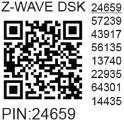
The first five digits of the key are highlighted or underlined to help the user identify the PIN Code part of the DSK text. The DSK is additionally represented with a QR Code as shown on the image.
A joining node requesting to join the S2 Access Control Class or the S2 Authenticated Class will obfuscate its Public Key by setting the bytes 1..2 to zeros (0x00) before transferring its key via RF.
The DSK may be used for out-of-band (OOB) authentication.
- The including gateway may use a QR code scanning device to read the entire DSK of the joining device and match it with the obfuscated public key received via RF from the joining device.
Z-Wave® Parameters
Parameter No. 1 – SW (SW1) Switch Type
Defines how the Device should treat the switch connected to the SW (SW1) terminal.
- Value size: 1 Byte
- Default value: 2
- Values & descriptions:
- 0 – Momentary switch
- 1 – Toggle switch (contact closed = ON / contact opened = OFF)
- 2 – Toggle switch (device changes status when switch changes status)
Parameter No. 17 – Restore State of O (O1) After Power Failure
Determines if the on/off status is saved and restored for the load connected to O (O1) after a power failure.
- Value size: 1 Byte
- Default value: 0
- Values & descriptions:
- 0 – Save last on/off status and restore after power failure
- 1 – Do not save or restore; remains off
Parameter No. 19 – O (O1) Auto OFF with Timer
Schedule the load O (O1) to turn OFF automatically after a defined time. Timer resets each time an ON command is received.
- Value size: 2 Bytes
- Default value: 0
- Values & descriptions:
- 0 – Auto OFF Disabled
- 1–32535 = 1–32535 seconds (or milliseconds – see Parameter No. 25)
Parameter No. 20 – O (O1) Auto ON with Timer
Schedule the load O (O1) to turn ON automatically after a defined time. Timer resets each time an OFF command is received.
- Value size: 2 Bytes
- Default value: 0
- Values & descriptions:
- 0 – Auto ON Disabled
- 1–32535 = 1–32535 seconds (or milliseconds – see Parameter No. 25)
Parameter No. 23 – O (O1) Contact Type – NO/NC
Sets the relay contact type for output O (O1): Normally Open (NO) or Normally Closed (NC).
- Value size: 1 Byte
- Default value: 0
- Values & descriptions:
- 0 – NO
- 1 – NC
| par-NO/NC | Command | Device Output State |
|---|---|---|
| NO (0) | OFF | OFF (0 V) |
| NO (0) | ON | ON (230 V) |
| NC (1) | OFF | ON (230 V) |
| NC (1) | ON | OFF (0 V) |
Parameter No. 25 – Set Timer Units to s or ms for O (O1)
Set timer units to seconds or milliseconds for Parameters No. 19 and 20.
- Value size: 1 Byte
- Default value: 0
- Values & descriptions:
- 0 – Timer set in seconds
- 1 – Timer set in milliseconds
Parameter No. 91 – Water Alarm
Determines which alarm frames the Device should respond to and how.
- Value size: 4 Bytes
- Default value: 0
- Values & descriptions:
- 0 – No action
- 1 – Open relay
- 2 – Close relay
Parameter No. 92 – Smoke Alarm
Same as above.
- Default value: 0
- Values & descriptions:
- 0 – No action
- 1 – Open relay
- 2 – Close relay
Parameter No. 93 – CO Alarm
Same as above.
- Default value: 0
- Values & descriptions:
- 0 – No action
- 1 – Open relay
- 2 – Close relay
Parameter No. 94 – Heat Alarm
Same as above.
- Default value: 0
- Values & descriptions:
- 0 – No action
- 1 – Open relay
- 2 – Close relay
Parameter No. 120 – Factory Reset
Reset to factory default settings and remove from Z-Wave network.
- Value size: 1 Byte
- Default value: 0
- Values & descriptions:
- 0 – Don’t do Factory reset
- 1 – Do the Factory reset
Advanced parameter, may be hidden under the Advanced tag.
Parameter No. 201 – Serial Number 1
Contains part of the device’s serial number.
- Read-only, cannot be changed
- Advanced, may be hidden under the Advanced tag
- Value size: 4 Bytes
- Range: 0x00000000 – 0x7FFFFFFF
Parameter No. 202 – Serial Number 2
Same as above.
Parameter No. 203 – Serial Number 3
Same as above.
Z-Wave® Command Classes
- ASSOCIATION_V2 [S0, S2]*
- ASSOCIATION_GRP_INFO_V3 [S0, S2]*
- BASIC_V2 [S0, S2]*
- SWITCH_BINARY_V2 [S0, S2]*
- CONFIGURATION_V4 [S0, S2]*
- DEVICE_RESET_LOCALLY_V1 [S0, S2]*
- FIRMWARE_UPDATE_MD_V5 [S0, S2]*
- INDICATOR_V3 [S0, S2]*
- MANUFACTURER_SPECIFIC_V2 [S0, S2]*
- MULTI_CHANNEL_ASSOCIATION_V3 [S0, S2]*
- NOTIFICATION_V8 [S0, S2]*
- POWERLEVEL_V1 [S0, S2]*
- SECURITY_V1
- SECURITY_2_V1
- SUPERVISION_V1
- TRANSPORT_SERVICE_V2
- VERSION_V3 [S0, S2]*
- ZWAVEPLUS_INFO_V2
Z-Wave® Notifications Command Class
| Comment | Overheat Detected |
|---|---|
| Z-Wave Notification Type Name | Heat Alarm |
| Z-Wave Notification Type - Value | 0x04 |
| Z-Wave Notification Type - Event | State |
| Z-Wave Notification Name | Overheat detected |
| Z-Wave Notification Name - Value | 0x02 |
| Z-Wave Notification Name - Version | V2 |
| Z-Wave Device specific | Yes |
| LED signalisation | Check LED signalisation table |
| Device reaction – Switch OFF all outputs and send notification | Yes |
| Action to restore – Power cycle | Yes |
| Action to restore – Short press on S button | Yes |
| Action to restore – Press any switch-push button connected to any SW (SW, SW1, SW2, …) terminal | Yes |
Z-Wave® Associations
Associations are used for direct communication between the Device and other devices within your Z-Wave network without the need of the Z-Wave gateway.
- Max. number of associated devices per group: 9 (fixed, cannot be configured)
- Recommended limit: no more than 5 per group to avoid network delays
- “Lifeline Group” is reserved solely for the gateway (only 1 node allowed)
Association Group 1 – Lifeline Group
Reports Device status and allows assignment of single Device only (Gateway by default). Supports:
- INDICATOR_REPORT: LED status
- DEVICE_RESET_LOCALLY_NOTIFICATION: triggered upon request
- SWITCH_BINARY_REPORT: status change report for output O (O1)
- NOTIFICATION_REPORT: triggered on Overheat
Association Group 2
- Allowed nodes: 9
- Assigned to switch connected to SW (SW1) terminal (uses Basic command class)
- Triggered by SW (SW1): sends BASIC_SET ON/OFF to associated device
- Supports: BASIC_SET
Association Group 3
- Allowed nodes: 9
- Assigned to switch connected to SW (SW1) terminal (uses multilevel start/stop command class)
- Triggered by SW (SW1): sends SWITCH_MULTILEVEL_START_LEVEL_CHANGE or STOP_LEVEL_CHANGE
- Supports:
- SWITCH_MULTILEVEL_START_LEVEL_CHANGE
- SWITCH_MULTILEVEL_STOP_LEVEL_CHANGE
Z-Wave® Important Disclaimer
Z-Wave® wireless communication may not always be 100% reliable. This Device should not be used in situations in which life and/or valuables are solely dependent on its functioning. If the Device is not recognized by your gateway or appears incorrectly, you may need to change the Device type manually and ensure that your gateway supports Z-Wave Plus® multi-level devices.
Troubleshooting
For troubleshooting, please visit our support portal: Support
Compatibility
| Gateway | On/Off | SW On/Off | Notes |
|---|---|---|---|
| Home Assistant | ✅ | ✅ | |
| Fibaro HC 3 / Z-Wave engine 3 | ✅ | ✅ | |
| Homey | ✅ | ✅ | |
| Homee Cube Gen 7 | ✅ | ✅ | |
| Homee Cube Gen 5 | ✅ | ✅ | |
| SmartThings | ✅ | ✅ | with the Shelly Wave edge driver |
| Vera Ezlo | ✅ | ✅ | |
| Cozify | ✅ | ✅ | |
| Hubitat | ✅ | ✅ |
Legend
| Symbol | State |
|---|---|
| ✅ | Working / Possible |
| 🌟 | Not Working / Not Possible |
| P | Partially |
| N/T | Not Tested |
| TBD | To be done |
Function Meaning
| Function | Meaning / Tested |
|---|---|
| On/Off | Responds to app UI On/Off command |
| SW On/Off | Reports On/Off changes by SW input |
| Dimming | Responds to app UI dimming command |
| SW Dimming | Reports dimming state change by SW input |
| Watts | Watts reported (unsolicited) |
| kWh | kWh reported (unsolicited) |
| Up/Down | Responds to app UI Up/Down command |
| SW Up/Down | Reports Up/Down changes by SW input |
| Slats | Slats respond to app UI command |
| SW Slats | Slats report changes done by SW |
| D control | Detached mode: reports scene commands (single, double press, etc.) |
| D Binary | Detached mode: reports binary On/Off by SW input |
| Sensor # | Sensor report visualized in gateway; type in notes |
Gateway Guides
You may find useful guides on gateways in the Z-Wave Shelly Knowledge Base.
Compliance
- Wave 1 multilingual EU Declaration of Conformity (2025-07-22)
- Wave 1 UK PSTI ACT Statement of Compliance