Shelly Smart Control App Inclusion Process
The following guide explains how to include your ShellyBLU Motion in the Shelly Smart Control app. You will need Shelly Plus or Pro devices to act as gateways for your sensor.
Step 1: Enable Bluetooth Permission
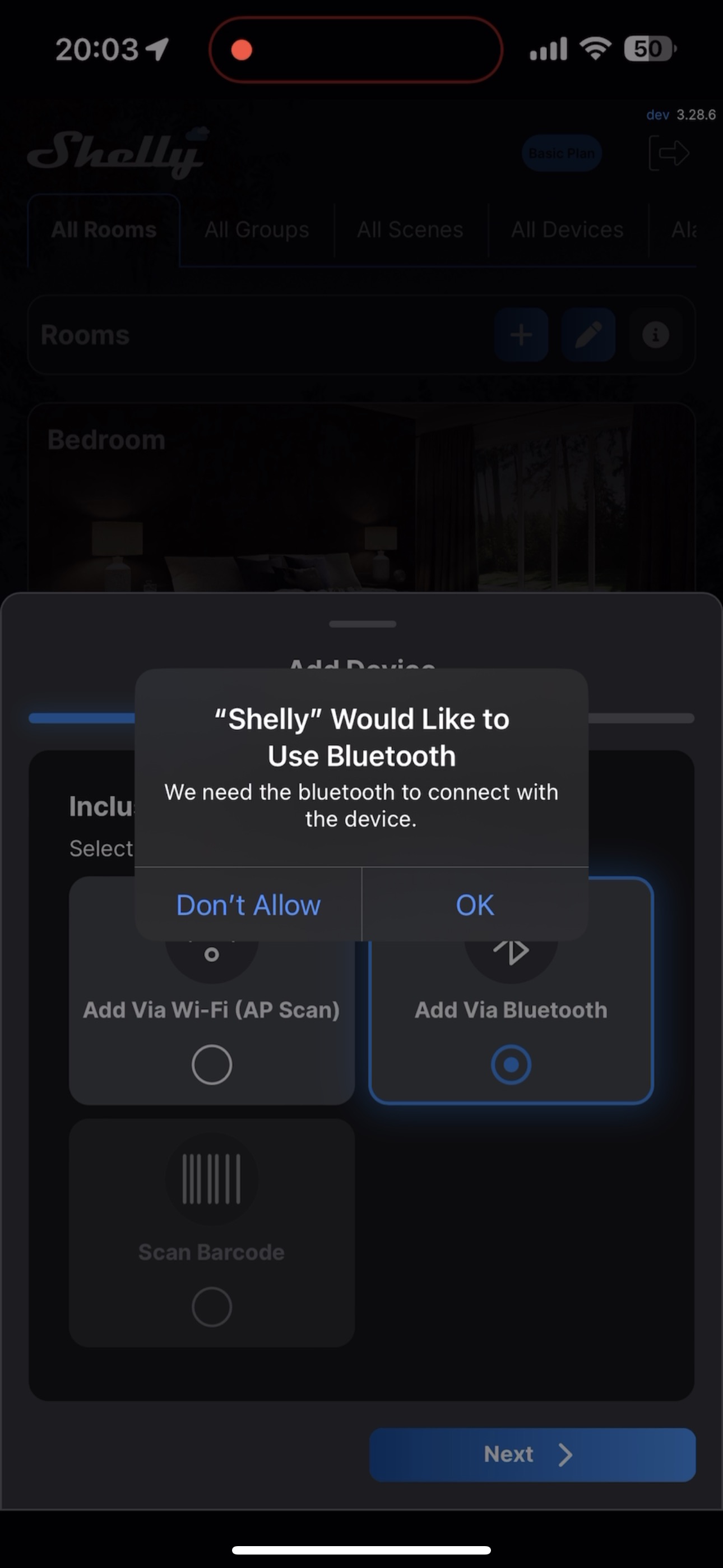
Make sure Bluetooth is enabled on your phone and the Shelly Smart Control app is allowed to use it. The pop-up in the following image will appear on your screen and ask you for permission to use Bluetooth.
Step 2: Start Adding a New Device
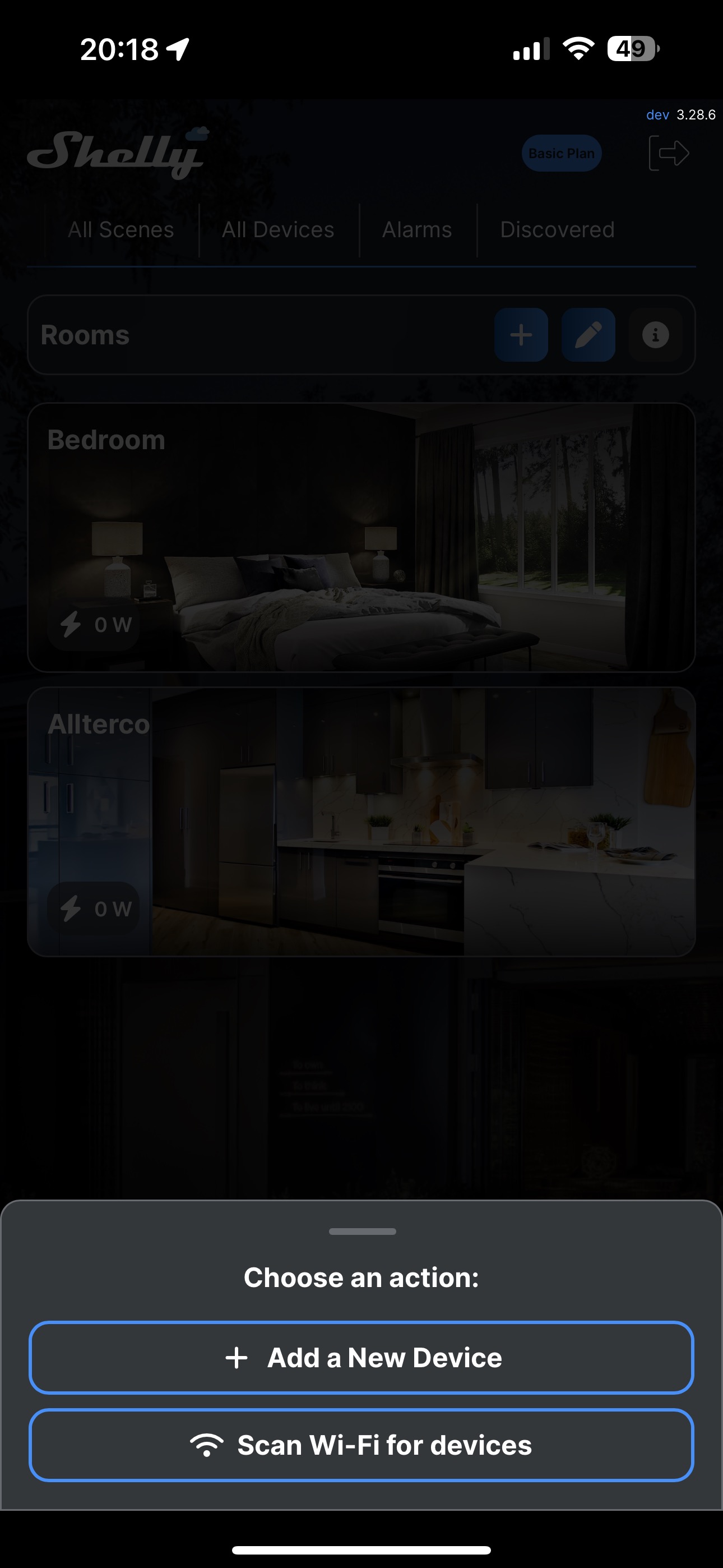
On the Shelly Smart Control app home screen, tap the + icon at the bottom right corner, then select Add a new device.
Step 3: Choose Bluetooth Addition Method
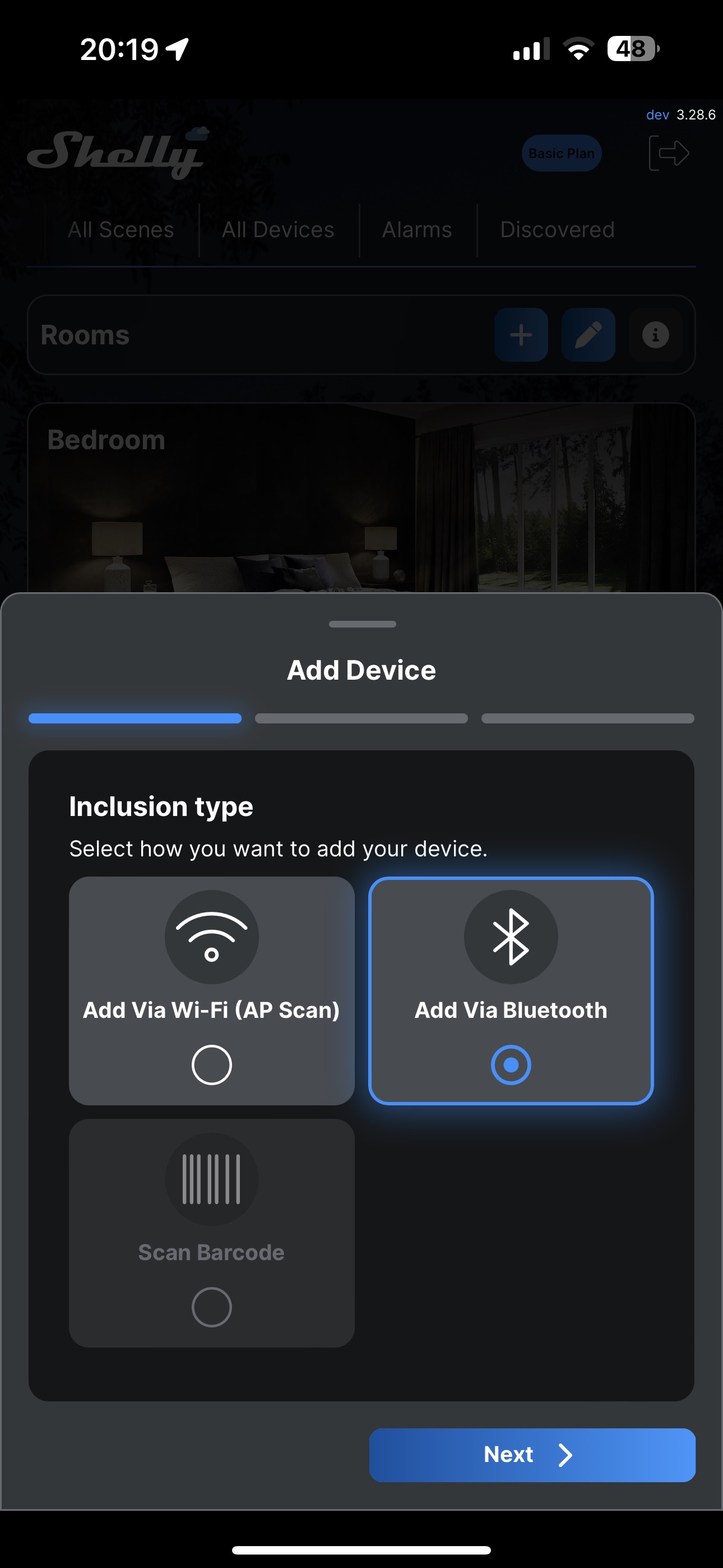
Select Add via Bluetooth.
Step 4: Scan for Devices
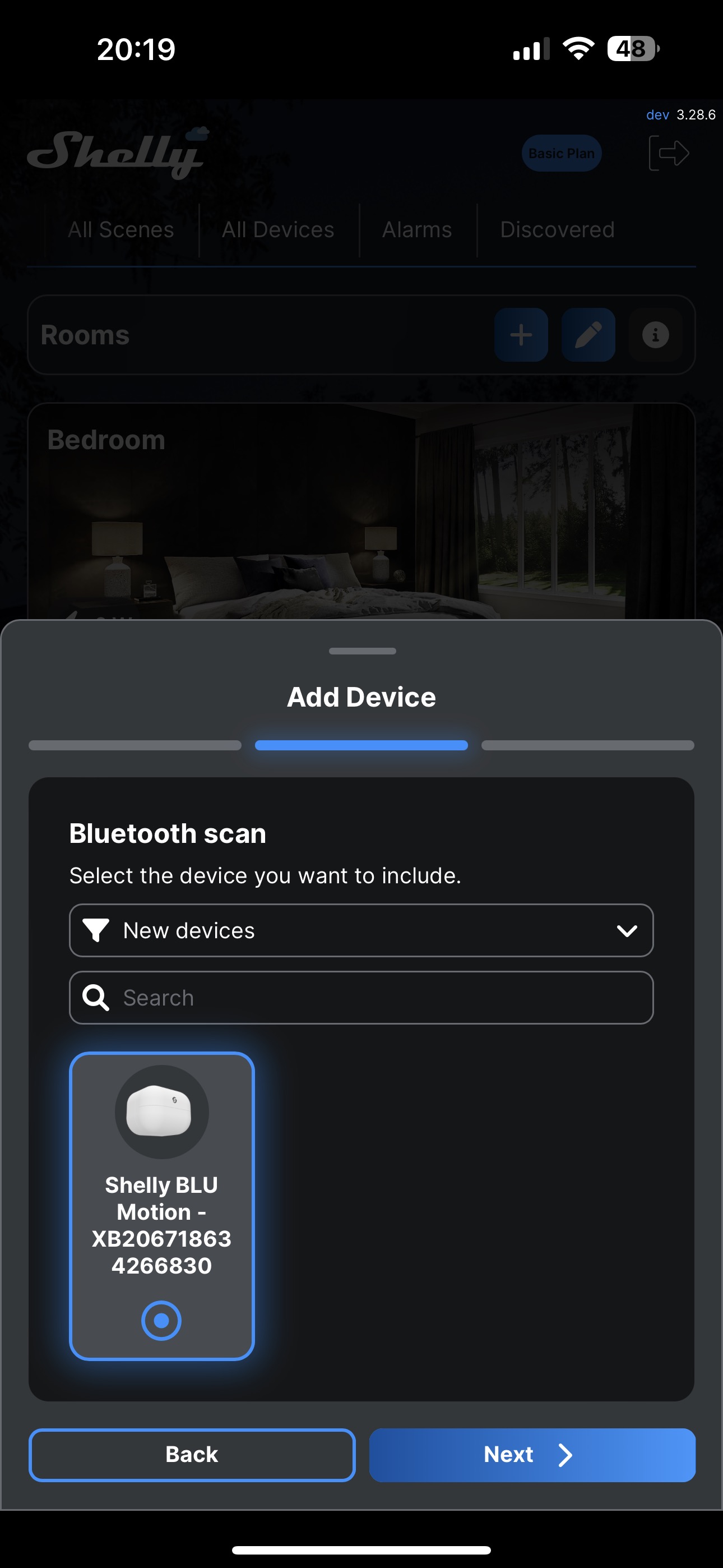
Once the Bluetooth device scan has started, press the device button once for it to appear in the list of available devices.

Tip: You can filter the list of devices shown by clicking on the drop-down menu and selecting either:
- New devices (default)
- My devices
- All devices
Step 5: Select Your Device
Click on the device you’d like to include once it appears in the list.
Step 6: Press the Device Button
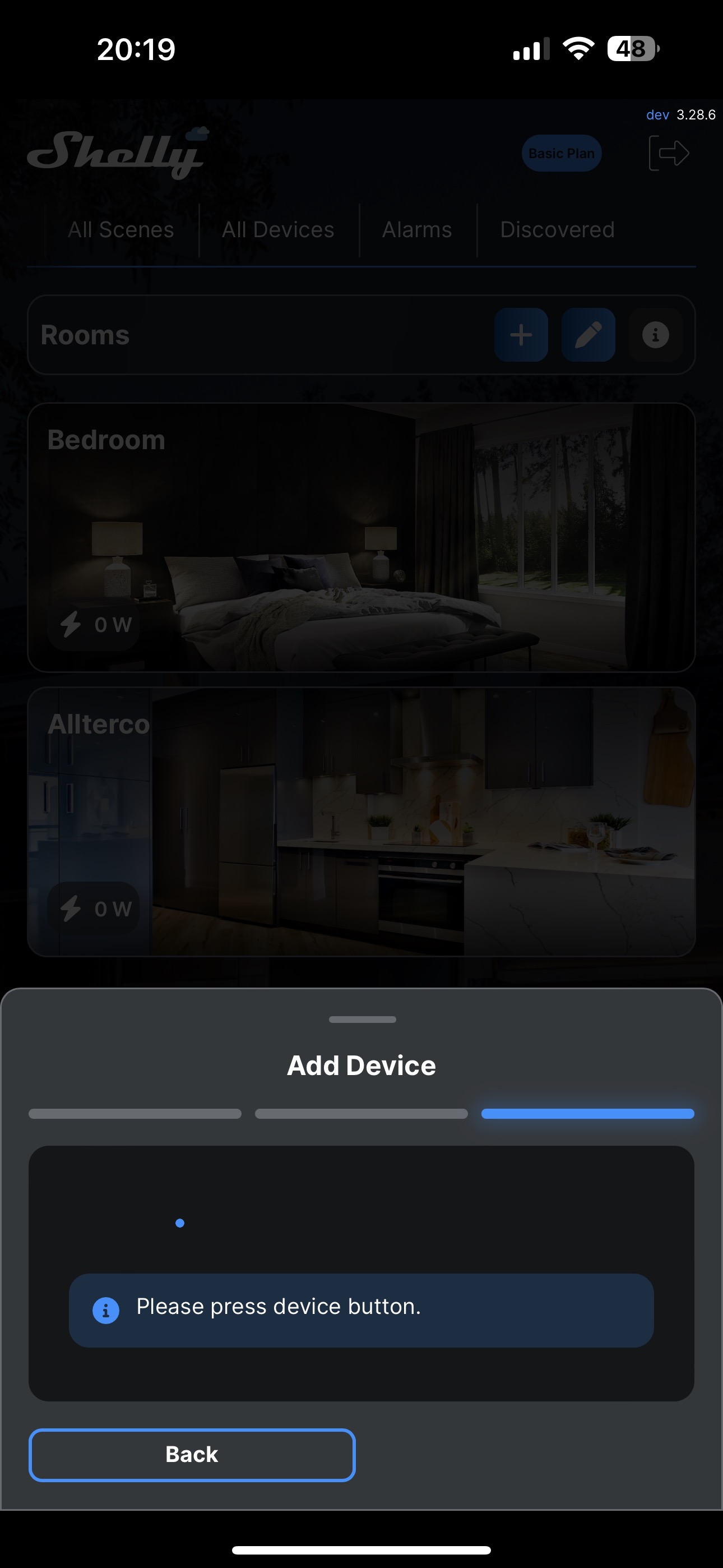
You will be prompted to press the device button.
Step 7: Name and Customize Your Device
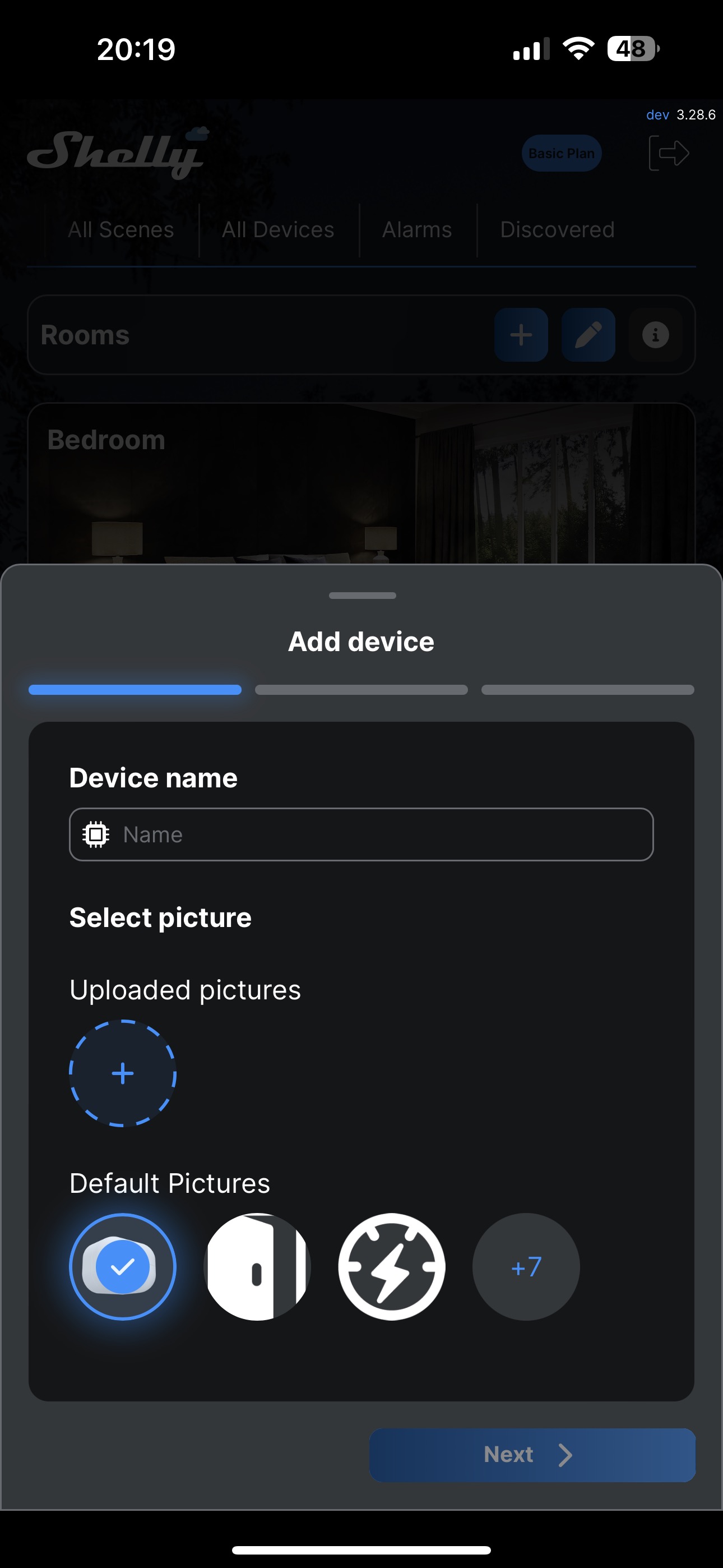
Name your device and choose a photo.
Step 8: Assign a BLE Gateway
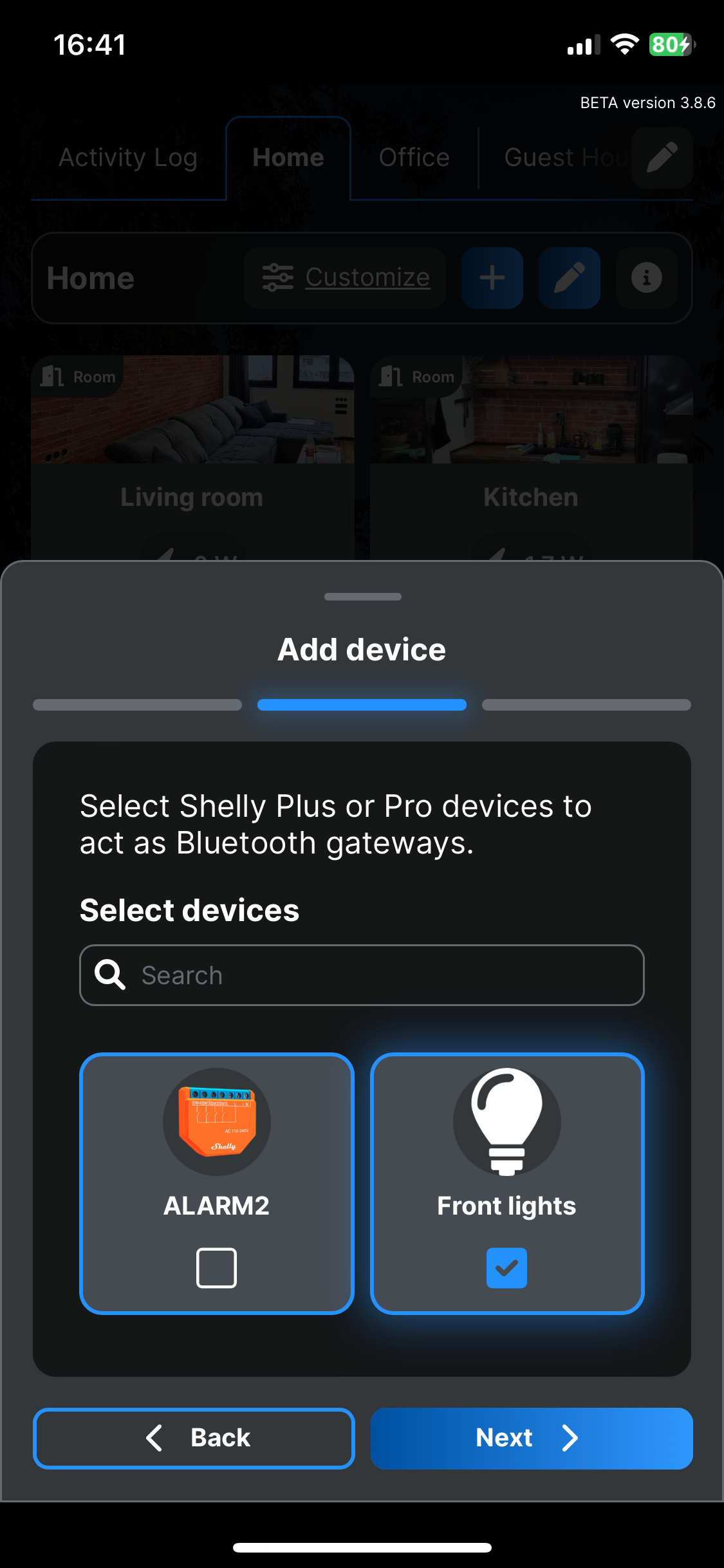
Select one or more Shelly Plus or Pro devices to act as BLE gateways. A list of all your compatible devices will appear. These devices will pick up the signal from the sensor when used and act as a bridge between Shelly BLU Motion and the Shelly Smart Control app.
❗ If you don’t see some of your Plus or Pro devices in the list, you may need to manually enable the Bluetooth gateway feature:
- Go to each Plus or Pro device in the app.
- Tap the 🌐 icon.
- Select Bluetooth.
- Check both Enable Bluetooth and Enable Bluetooth gateway.
✅ We recommend having at least one BLE gateway in every room.
Step 9: Handle Missing Gateway Alert
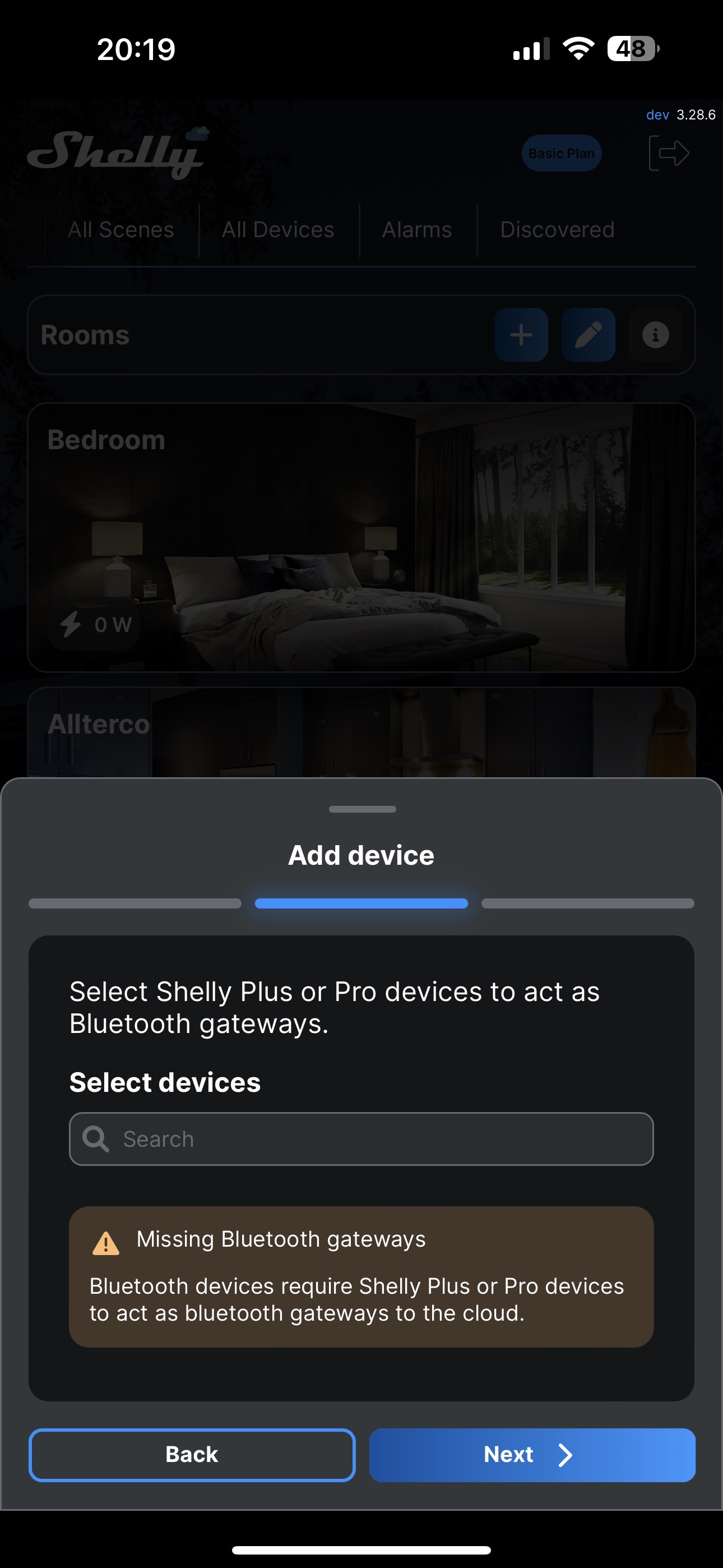
If no Plus or Pro devices are detected, a message like the one below will appear:
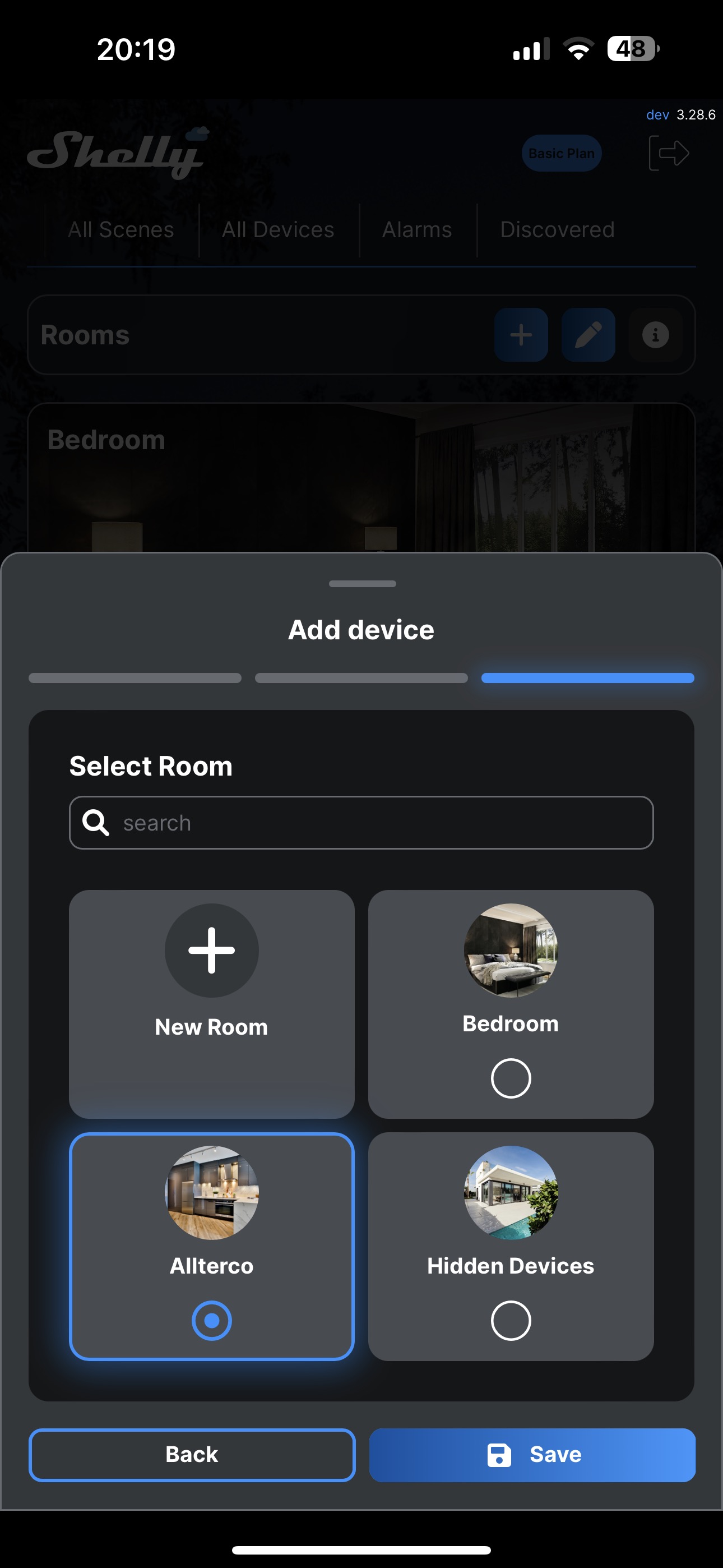
Step 10: Assign to a Room
Include the sensor in an existing room, or create a new one, then save the changes. Your device is now successfully added to the app and can be found in its designated room.