
Add via Bluetooth
Prerequisites
- Shelly Smart Control app installed on your mobile device
- Active account in Shelly Cloud. For more information on how to create an account, go to Account Registration.
- Bluetooth connectivity enabled on your mobile device
- Permission granted for Shelly Smart Control to use Bluetooth
Add Device via Bluetooth
- Open the Shelly Smart Control app.
- If this is your first device, tap the Add Device button. If you’ve already added devices, tap the plus sign in the bottom-right corner of the screen (Fig. 1).
- Select Add via Bluetooth (Fig. 2).
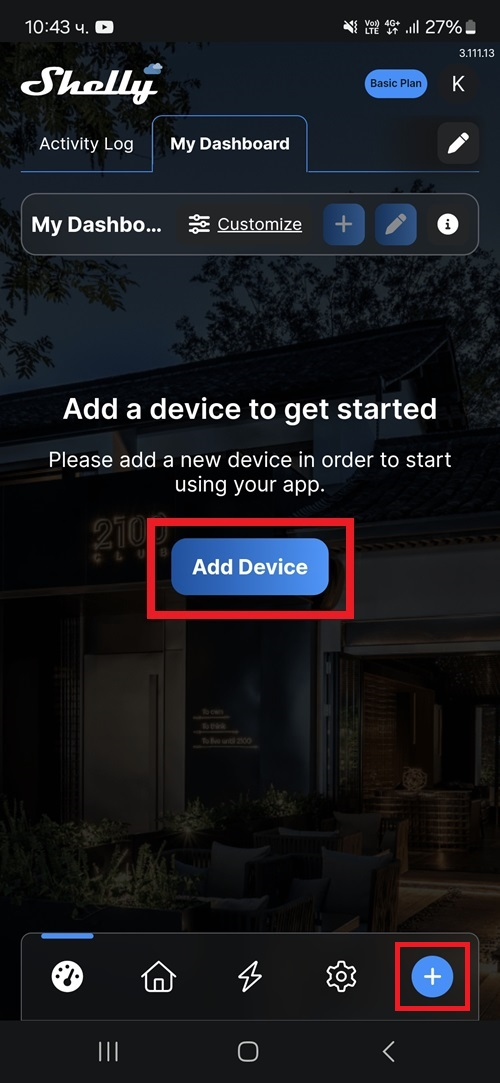
Fig. 1
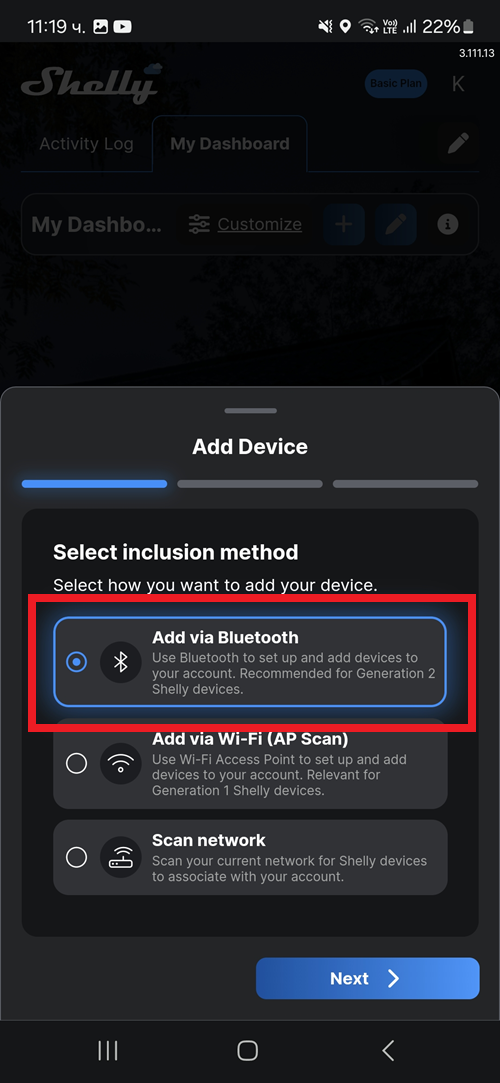
Fig. 2
- Tap Next to continue. A list of available devices will appear.
- Select the device you want to add and tap Next.
- Enter your Wi-Fi credentials and tap + Add device (Fig. 3).
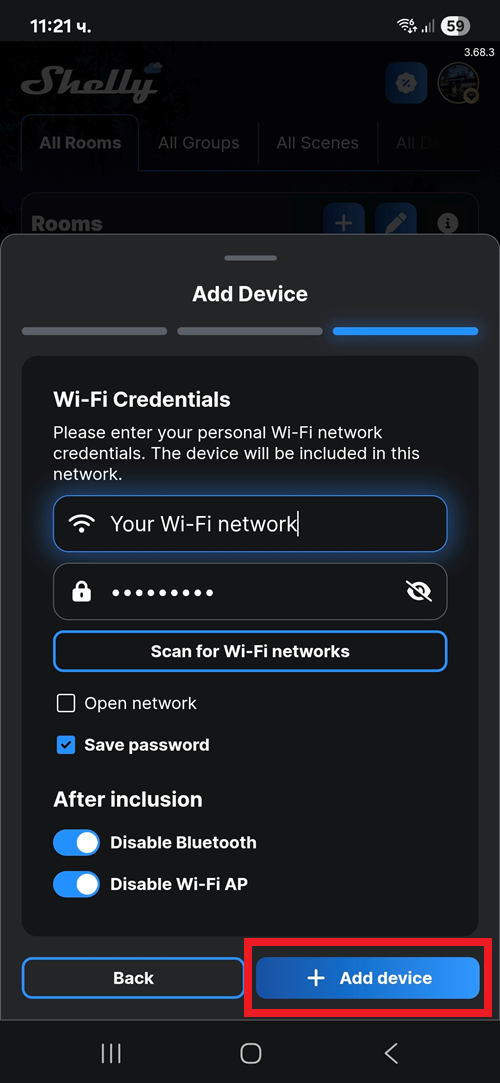
Fig. 3
- Wait for the app to detect the device. The process may take a few minutes. Once complete, a success message will appear.
- Enter a name for the device and select its icon. Tap Next.
- Choose one of the following options:
- Select an existing room from the list, or search for it using the Search bar.
- Create a new room by tapping + Add room (Fig. 4).
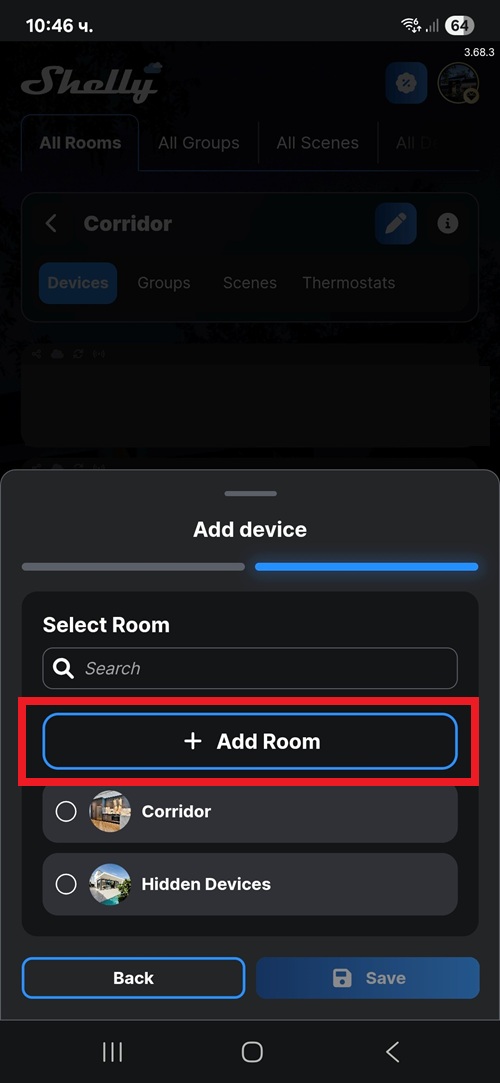
Fig. 4
- Tap Save. The device has now been successfully added to the app.